
FAQ
Have questions about amiibo NFC emulator? Explore our comprehensive FAQ for expert tips on amiibo emulation, file management, and console compatibility. Prefer to watch it in action? Jump to the video tutorials. If your question isn't covered, shoot us an email. Our technical support team is ready to help you master your amiibo backup device!
Video Tutorials
Need to see the steps?
Watch short walkthroughs for setup, NFC scanning, and game-specific examples before diving into the detailed answers.
An NFC Emulator for amiibo is a technology—available as hardware or software—that replicates the data signals of physical amiibo figures. It allows players to unlock exclusive in-game content without the need for the original physical collection.
No, a physical figure is not required. The emulator operates using digital backup files, which can be created from your own collection or sourced from compatible data archives.
The Nintendo Switch family, Switch 2, 3DS, and Wii U.
NFC Detection Area
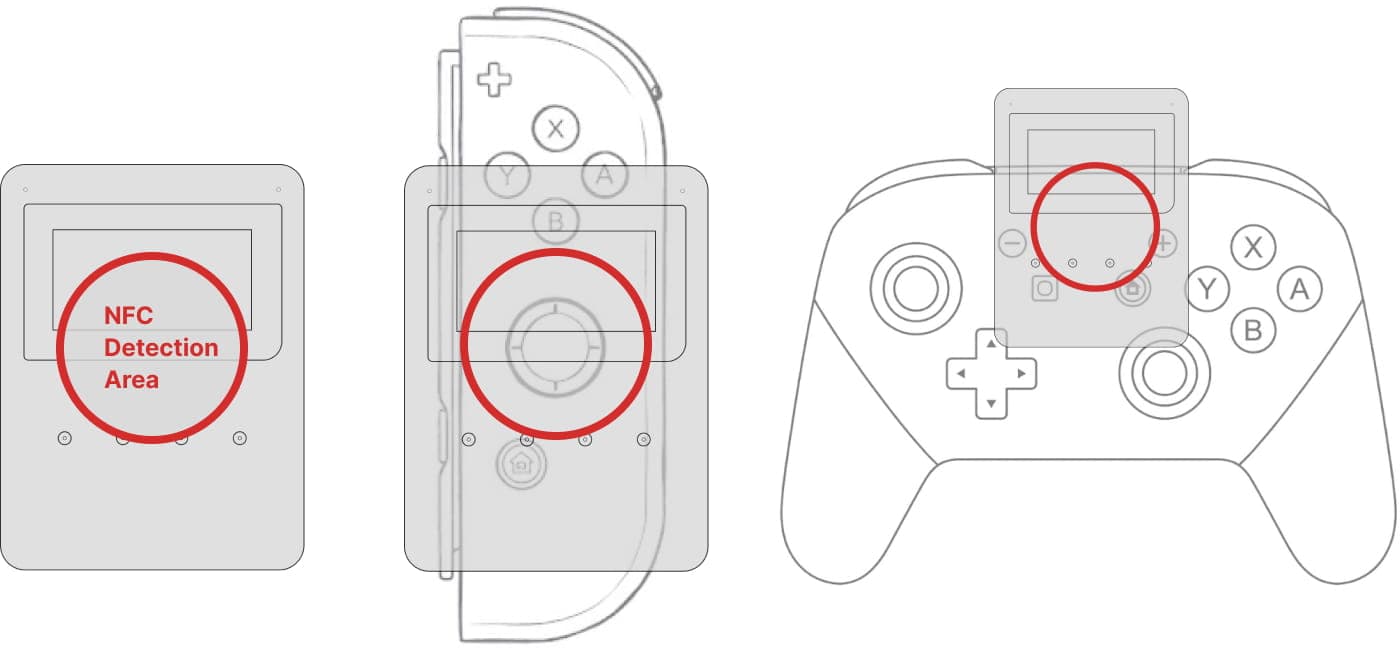
- •Step 1: Activate the Amiibo feature within your game.
- •Step 2: Select the Amiibo you wish to use on the NFC Emulator.
- •Step 3: Gently place the NFC Emulator over the NFC touchpoint on your Joy-Con™ or Pro Controller.
- •Note: You may need to adjust the position slightly to find the optimal scanning "sweet spot."
For detailed video tutorials and game-specific examples, visit the Video Tutorials page.
- •On the Right Joy-Con™, the NFC sensor is located at the center of the right analog stick.
- •On the Pro Controller, the NFC sensor is located at the center logo of the controller.
- Please ensure your emulator is positioned precisely over this area. For step-by-step instructions, watch our video tutorial in the Video Tutorials page.
Each game has its own method to activate amiibo functionality. We have detailed guides for the most popular games: